Running your crew's time clock
A quick tour of what admins can do in Clockateer: set up the company, invite people, fix punches, handle time off, and run payroll.
Download PDF1Signing in
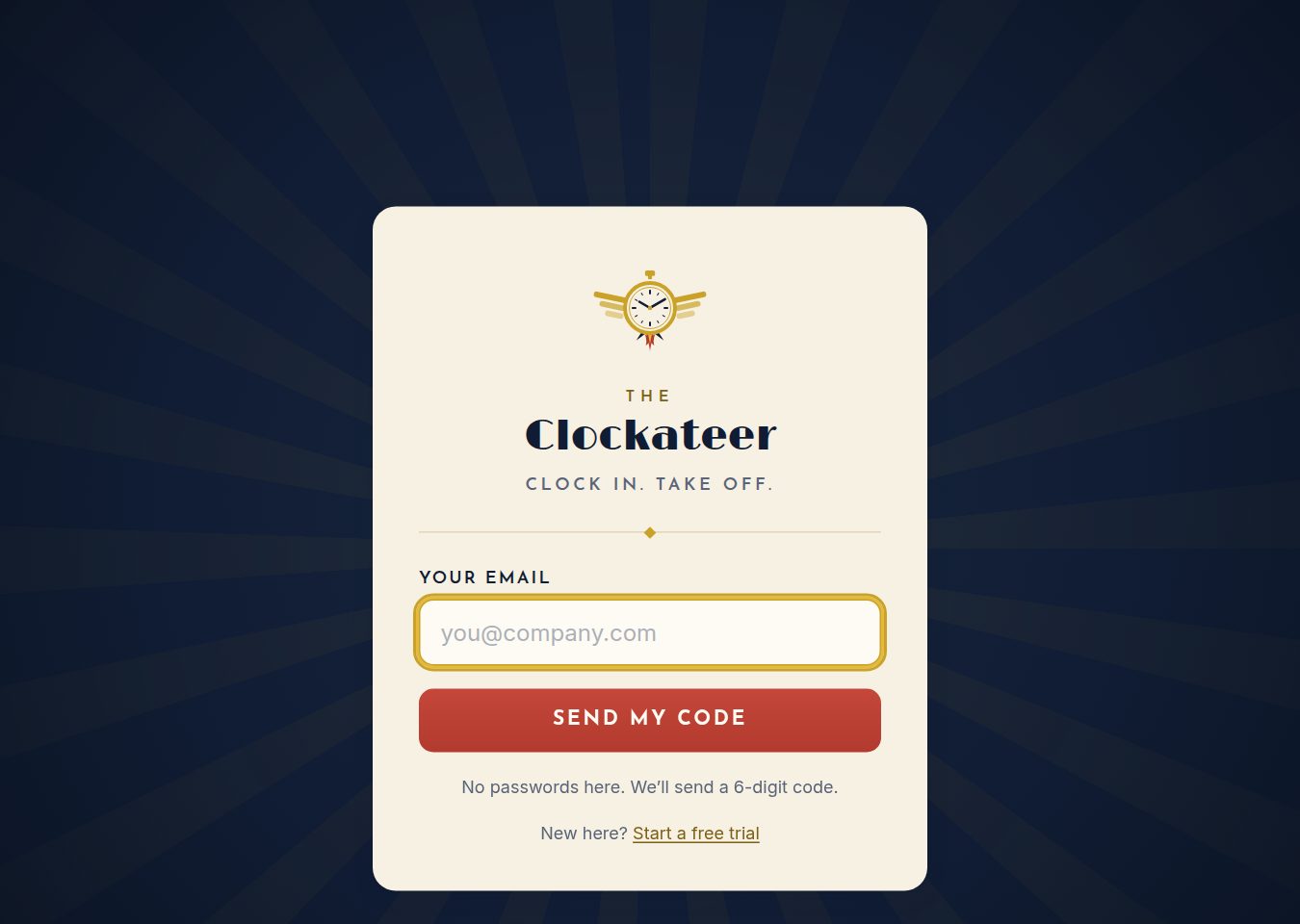
Clockateer has no passwords. Go to clockateer.com, type your email, and press Send my code. Enter the 6-digit code from your inbox and press Punch it. Codes expire after 10 minutes.
- You stay signed in for 60 days on that device.
- If your email belongs to more than one company, pick the company after you sign in. To switch later, click your name in the top bar.
2Finding the admin pages
Click Admin (in gold) in the top bar. The admin tabs are:

Clients, Schedule and PTO only appear after you turn them on in Settings.
3Settings: do this first
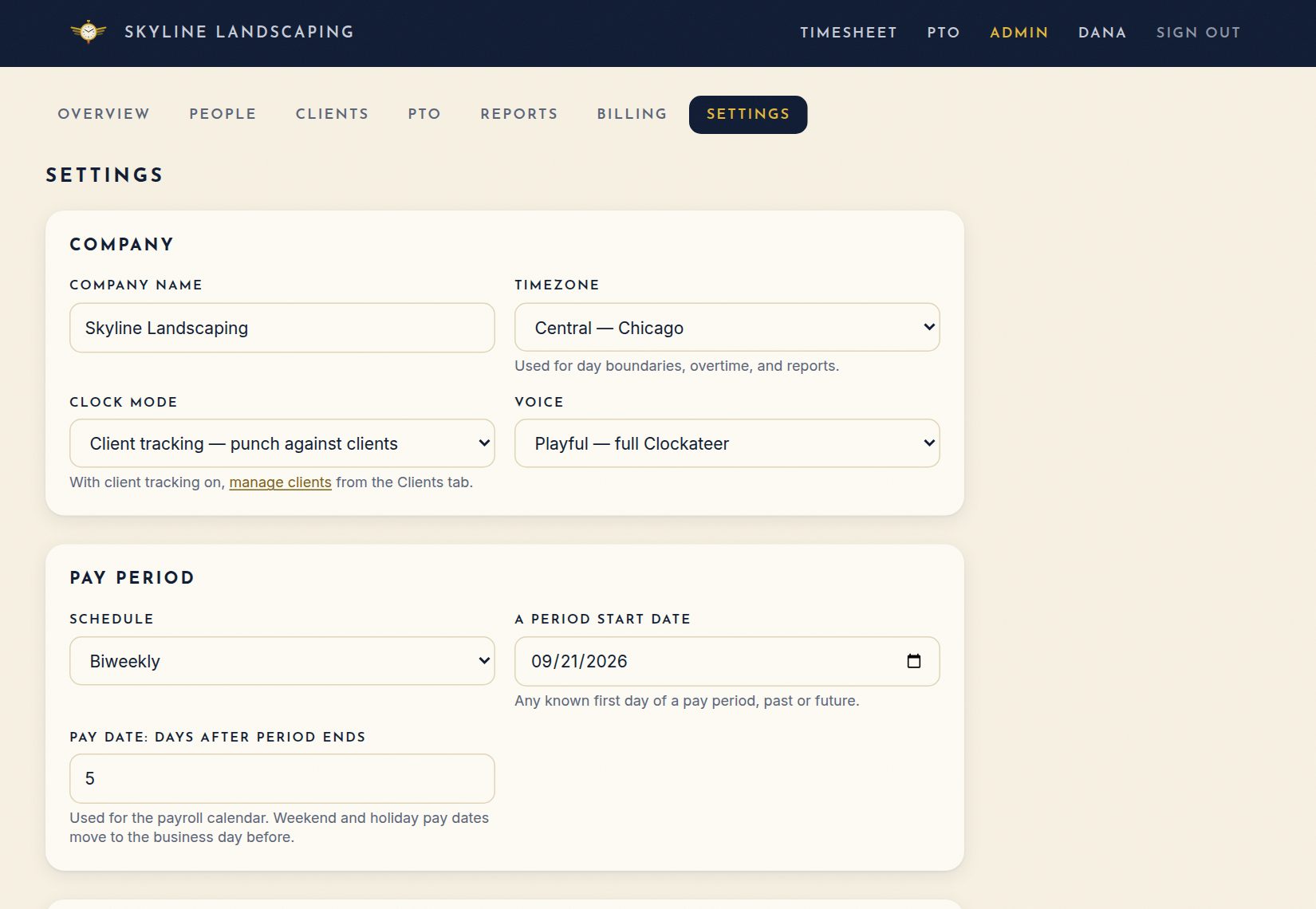
Open Settings, check each section, then press Save settings at the bottom.
- Company: company name, timezone, and clock mode. Choose Simple for plain in and out, or Client tracking so people punch against a client or job. The voice setting switches between the playful Clockateer tone and plain wording.
- Pay period: weekly, biweekly, semi-monthly or monthly, with the start date or cutoff days and when payday falls.
- Overtime: the day your workweek starts and weekly OT hours (for example, 40). You can also turn on daily overtime (California style).
- Payroll export: check We run payroll in ADP RUN to get the ADP export and an ADP ID field for each person.
- PTO: check Enable PTO requests so people can request time off.
Tip: the timezone and pay period are guessed when the company is created. Confirm them before your first payroll.
4People: invite and manage your crew
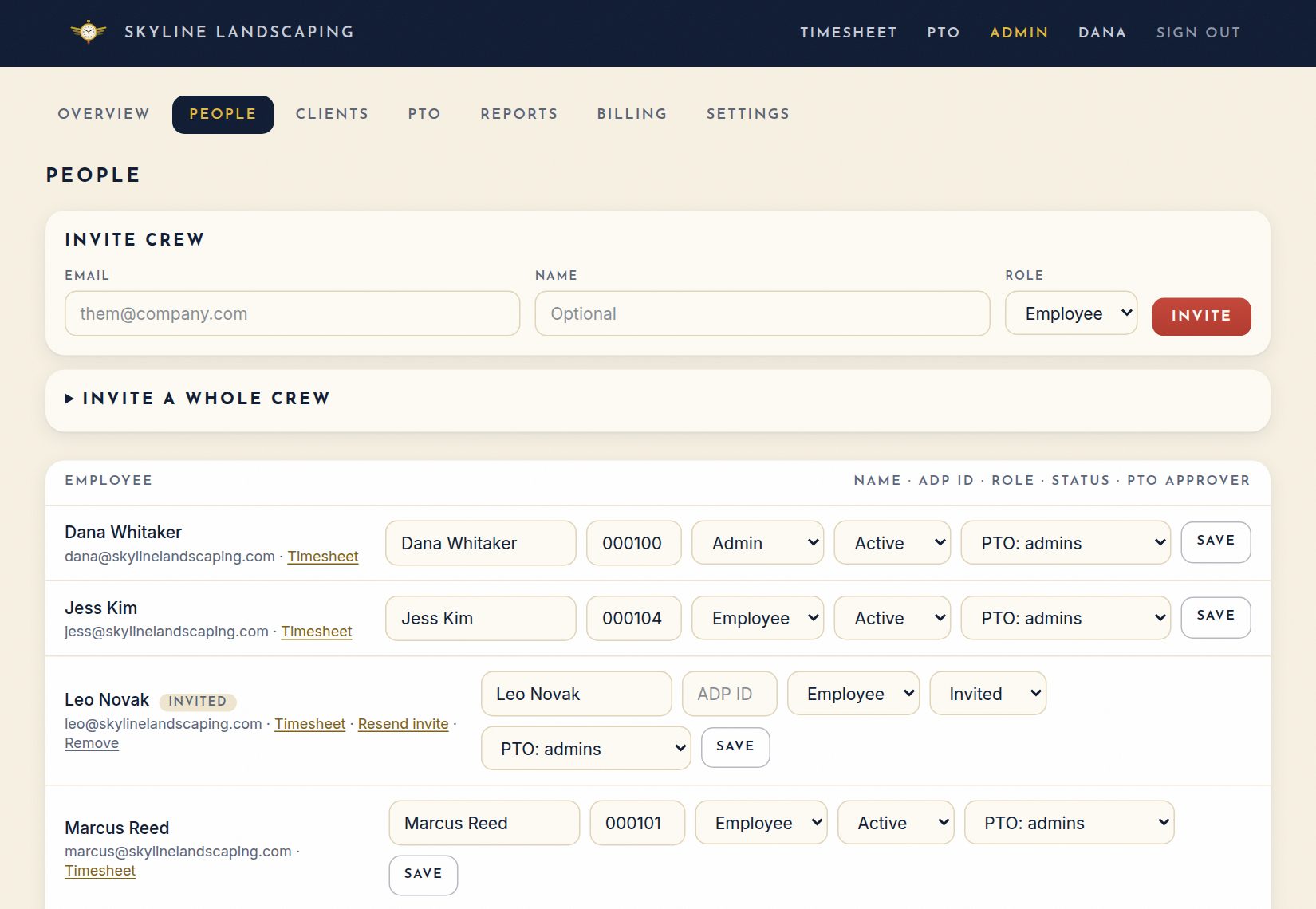
- Invite one person: enter their email, name and role (Employee or Admin), then press Invite. They get an email with a sign-in link.
- Invite a whole crew: paste one person per line (email, name, ADP ID) straight from a spreadsheet and press Send invites.
- Edit someone: change their name (it prints on timesheets and exports), ADP ID, role, status or PTO approver, then press Save.
- Someone leaves: set their status to Inactive. Their history is kept, and you can set them back to Active any time.
- Invited people who haven't signed in yet have Resend invite and Remove links.
- Click Timesheet next to any person to see their hours.
5Overview: who's working now
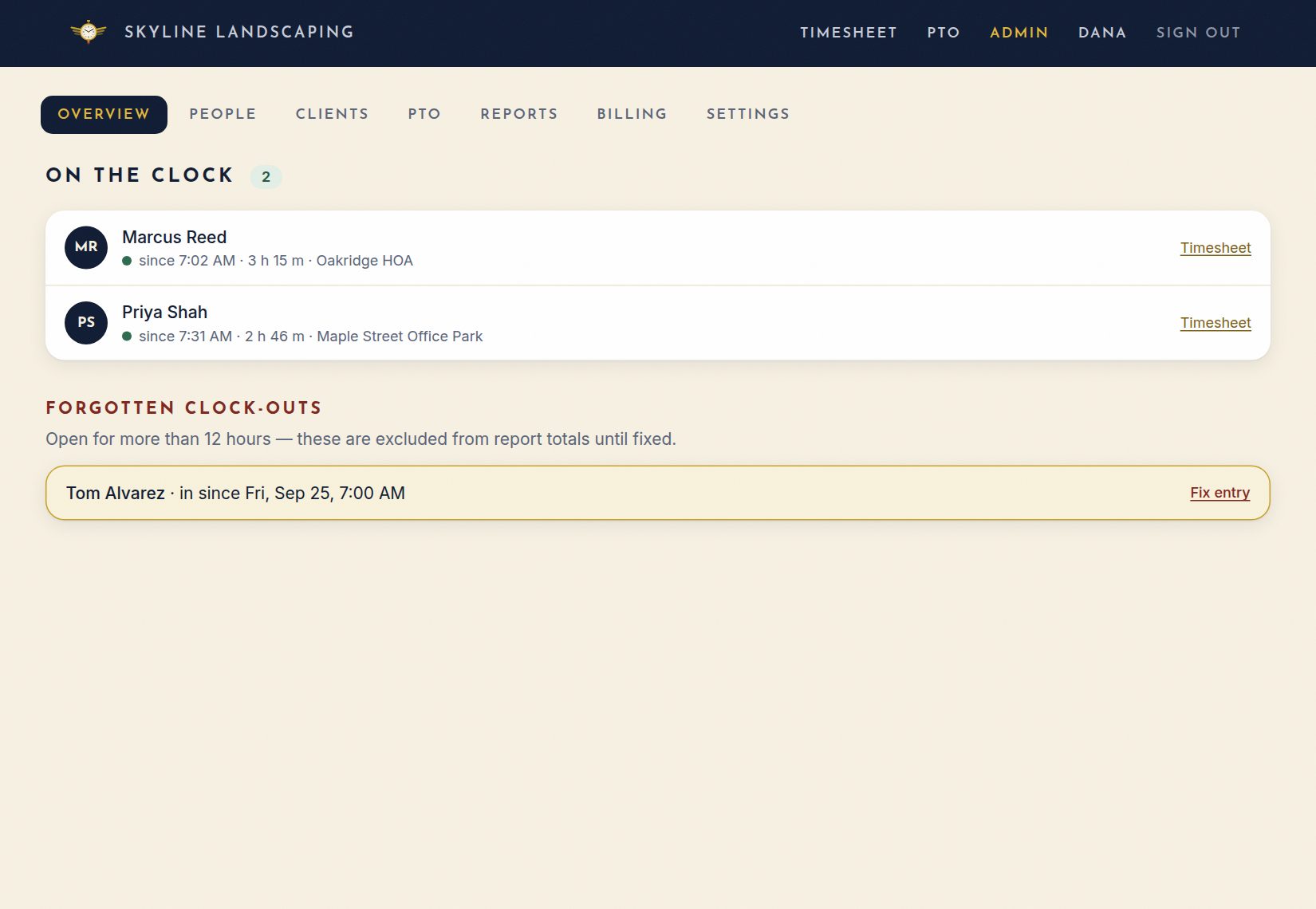
- On the clock lists everyone clocked in right now, with their start time.
- Forgotten clock-outs lists shifts that have been open for more than 12 hours. These don't count toward report totals until you close them, so press Fix entry and add the clock-out time. Clockateer also emails the employee a reminder.
6Fixing and adding punches
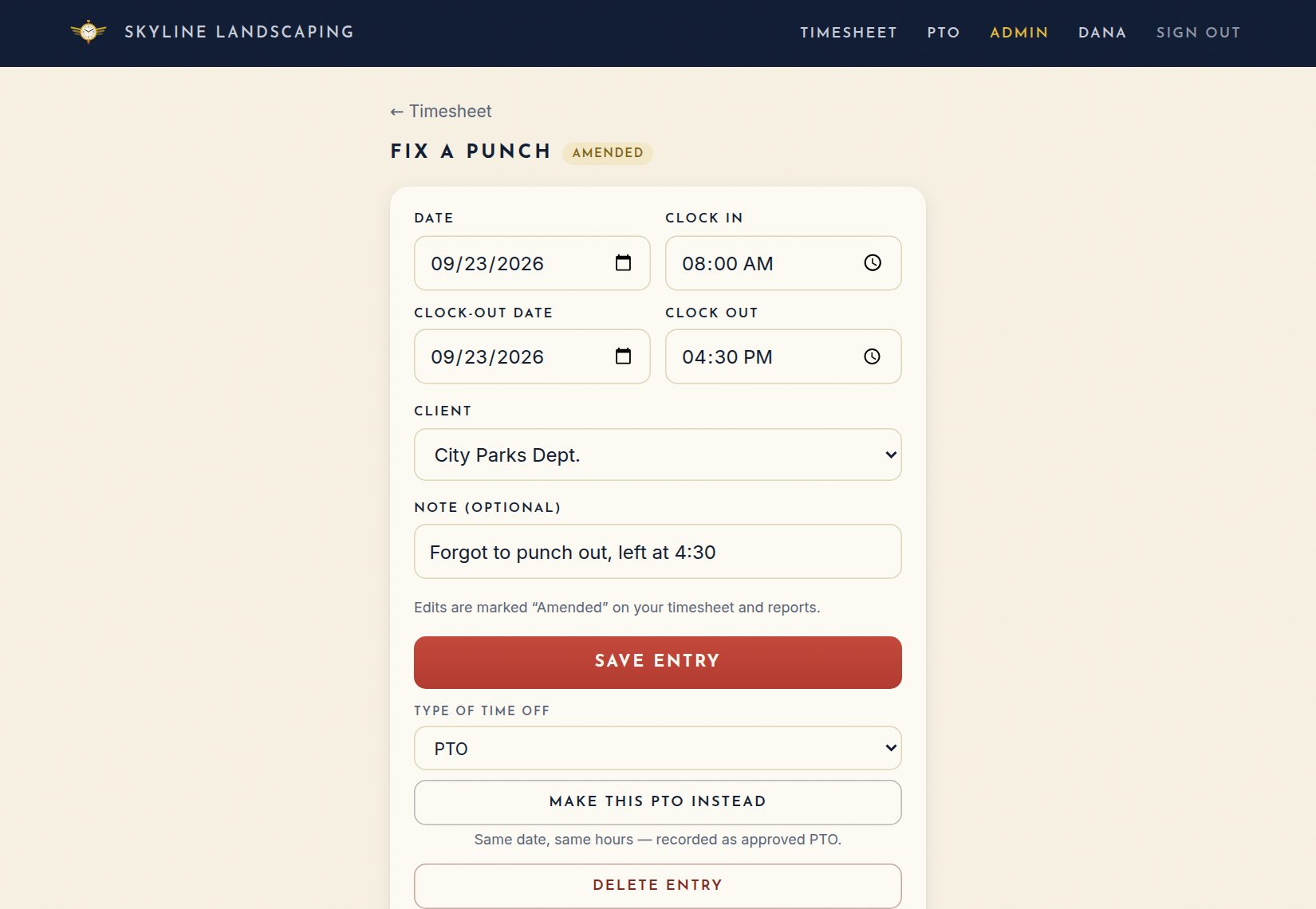
- Open a person's timesheet (from People or Overview) and click any punch to change the date, clock-in or clock-out time, client or note. Press Save entry, or Delete entry to remove it.
- Use + Add a shift to enter a shift they forgot to punch.
- If PTO is on, Make this PTO instead turns the punch into approved time off for the same day and hours.
- Every change is marked Amended and recorded in a history log.
- Use 🖨 Print / save PDF on a timesheet to print or save it.
7Time off (PTO)
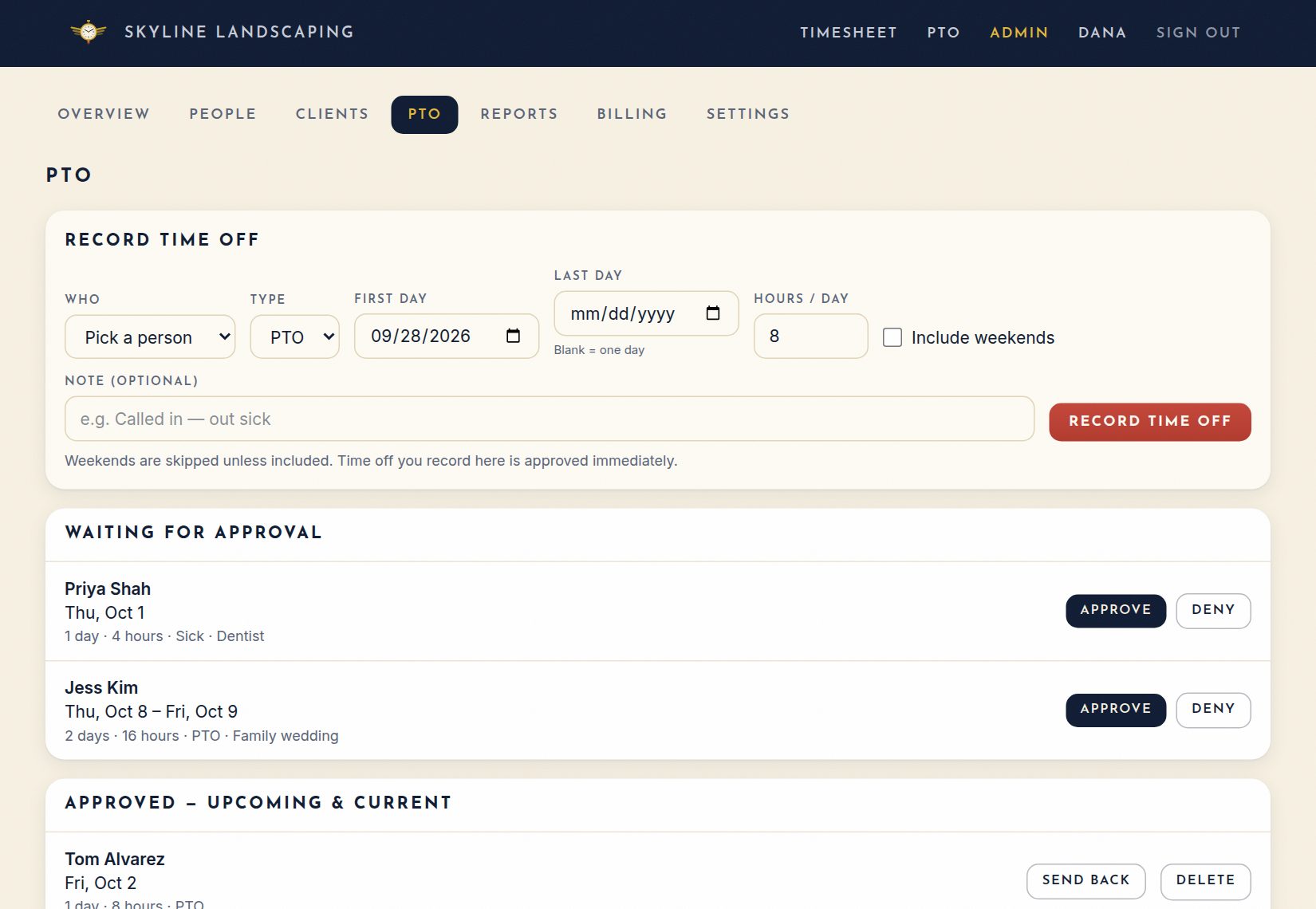
- Waiting for approval: press Approve or Deny. The employee gets an email either way.
- Record time off for someone yourself. Pick the person, type, days and hours per day. It's approved right away.
- For approved time off, Send back returns it to the employee to change, and Delete removes it.
- Types of time off: add types such as Vacation or Sick, with an optional ADP code.
- On the People page, you can let someone who isn't an admin approve a person's PTO (for example, a team lead) by making them that person's PTO approver.
8Running payroll
Go to Reports and use the ← → arrows to choose the pay period. Then:
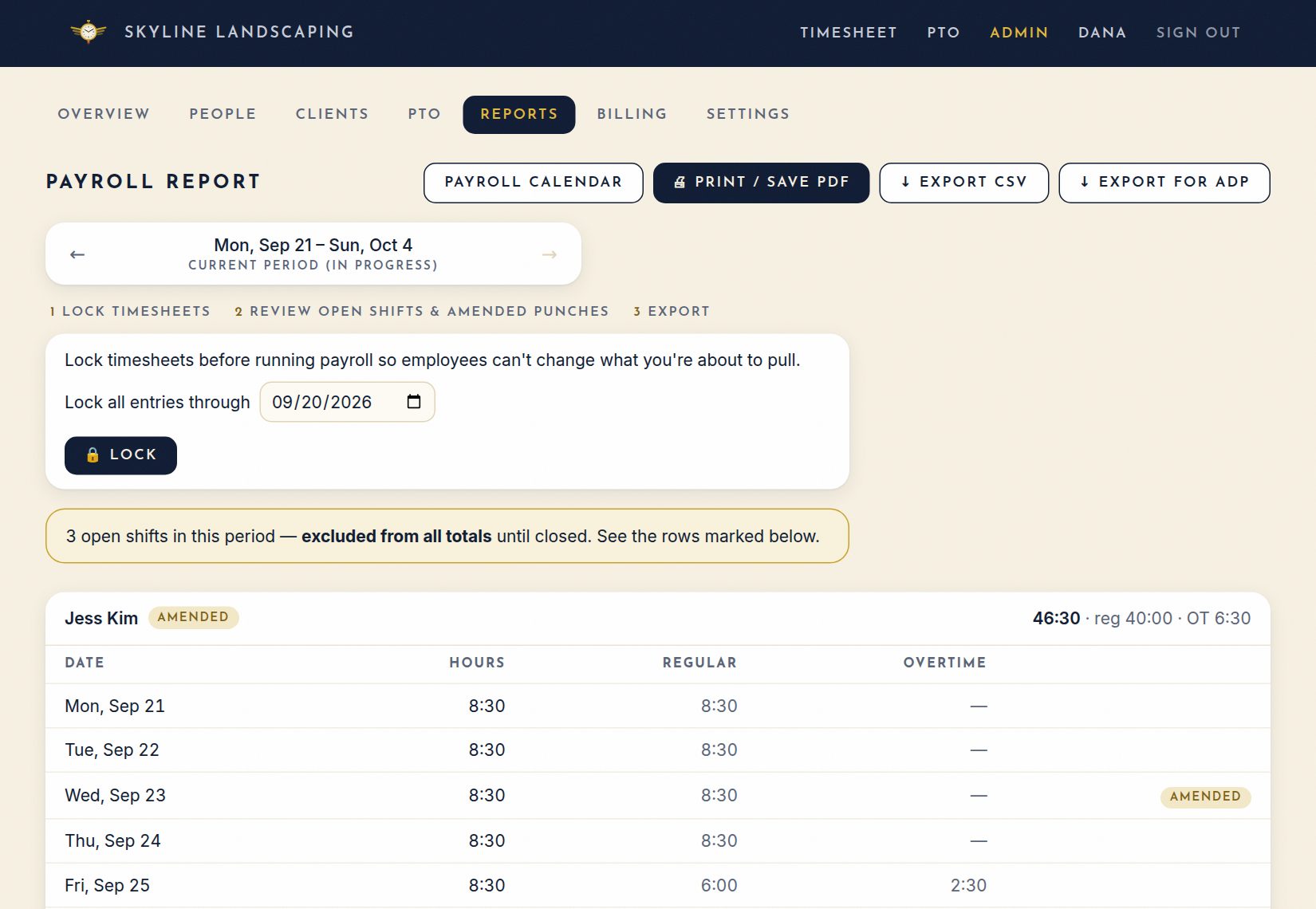
- Lock timesheets. Choose a date and press 🔒 Lock. Employees can no longer change punches up to that date, but admins still can. Press Unlock to undo it.
- Review. Close any open shifts (press Fix) and look over punches marked Amended. Each person's card shows total, regular and overtime hours, plus PTO.
- Export. Press ↓ Export CSV for a spreadsheet, ↓ Export for ADP for ADP RUN, or 🖨 Print / save PDF.
The Payroll calendar button shows every pay period and pay date for the year. You can download it as a CSV or print it. Pay dates that land on a weekend or holiday move to the business day before.
9Clients
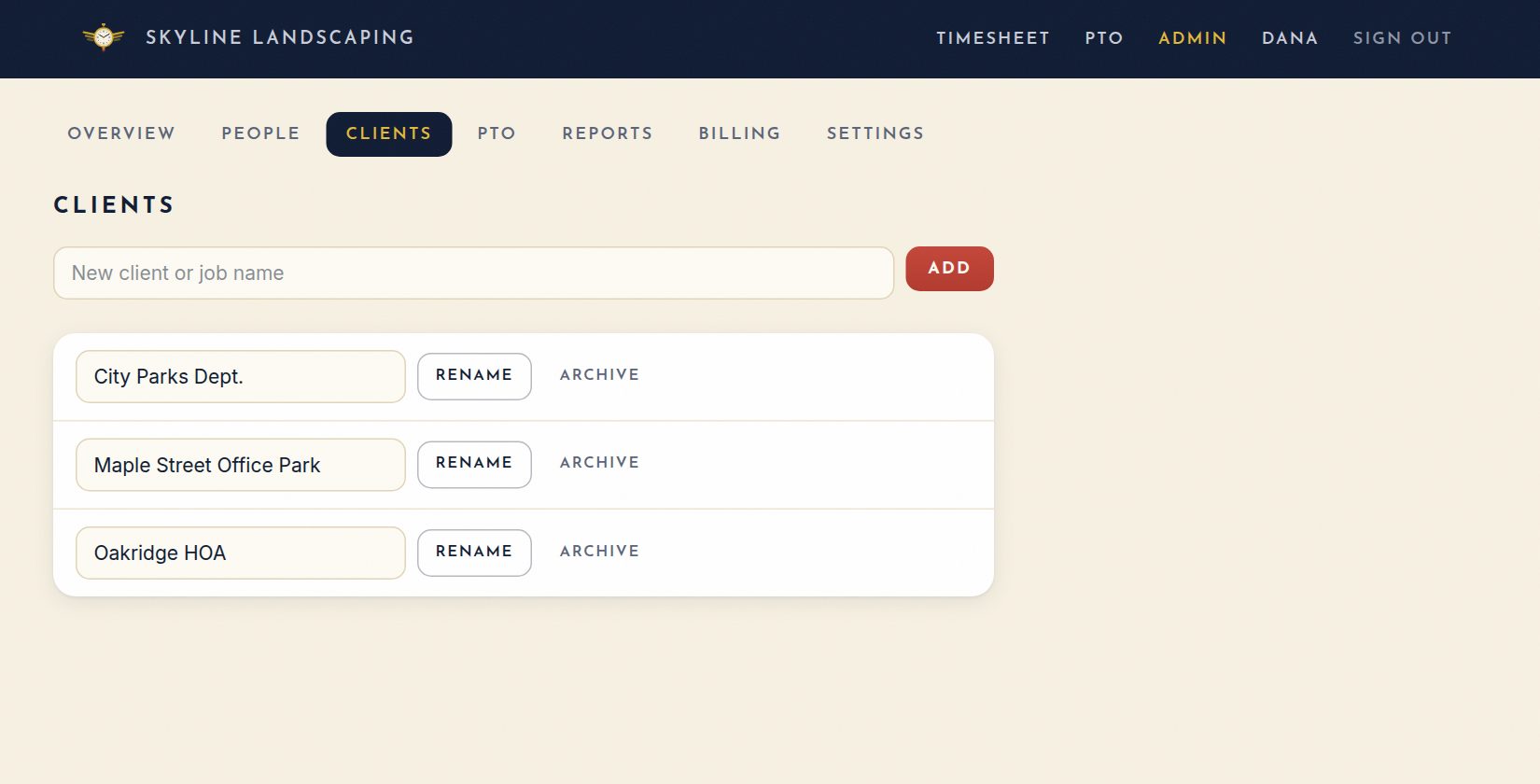
This tab is only used in Client tracking mode. Add each client or job name, then rename or archive them as needed. Employees choose a client when they clock in and can switch clients during a shift. Reports break hours down by client.
10Scheduling
11Billing
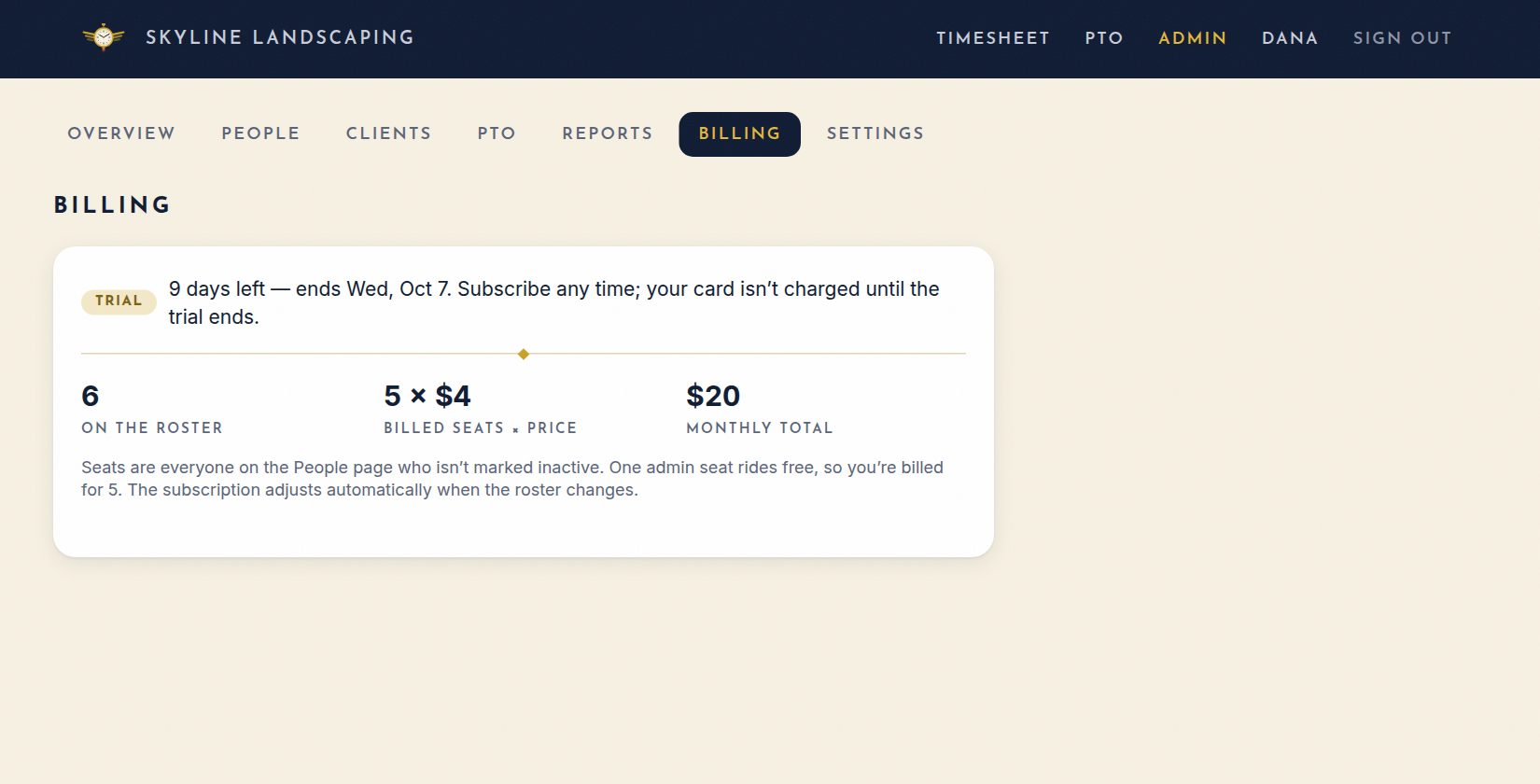
- Price: $4 per person per month. Everyone on the People page counts except people marked Inactive.
- One free admin: once you have 3 or more people, one admin seat is free. For example, a crew of 10 pays for 9 seats, or $36 a month.
- Free trial: new companies get 14 days free. You can subscribe any time, and your card isn't charged until the trial ends.
The Billing page shows your plan status, how many people are on the roster, and your monthly total. Use Subscribe to start a subscription or Manage billing to update your card or see invoices. If the trial ends or a payment fails, you have 14 more days to fix it, and a banner with a Fix billing button appears on every page. After that the account is locked until you subscribe. Your data is never deleted.
12What your employees see
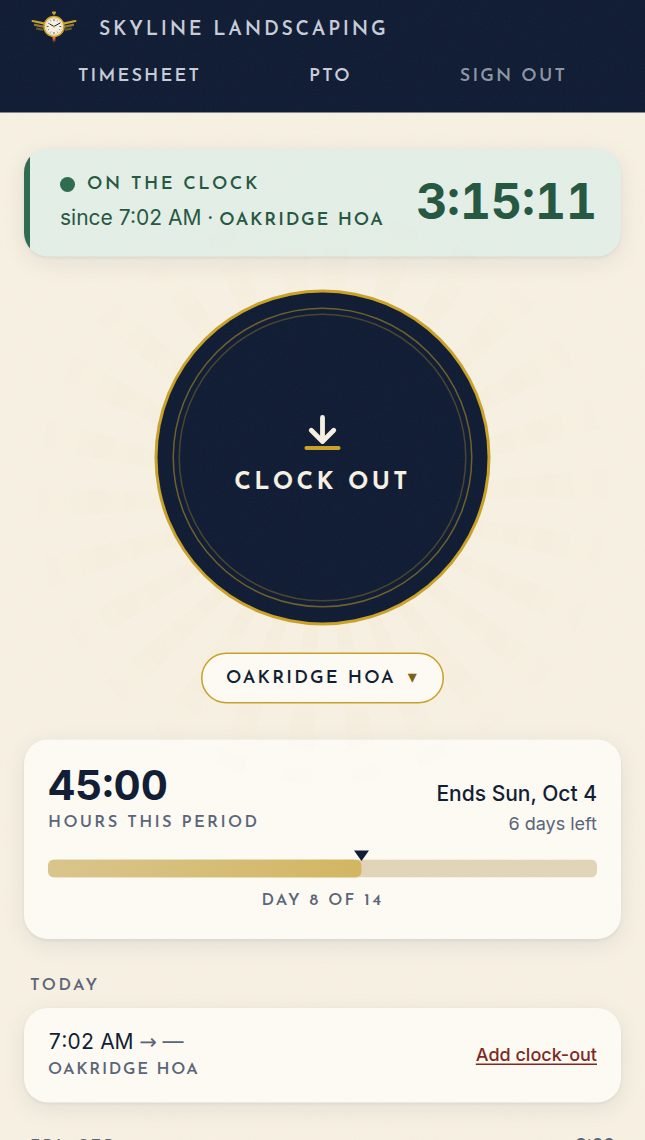
Employees sign in the same way you do. Their home screen has one big Clock in / Clock out button, their hours for the pay period, and a link to their full timesheet. They can fix their own punches until the period is locked. If PTO is on, they can request time off from the PTO tab.